


Backup printer
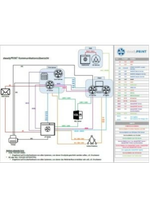
Defines a backup printer to ensure printer availability and notifies users of the process. Download.

Here you’ll find useful downloads related to steadyPRINT.
Key documents addressing the most common questions about steadyPRINT.
steadyPRINT in practice? Check out our success stories!
Hier finden Sie Dokumente, in denen technisches Wissen vermittelt wird.
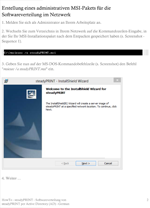
Everything you need for installation.
If you are interested in an older version or need assistance, please contact our support team.
Current version: 11.5.2
Note on download/account
The steadyPRINT download is available via the K-noxFiles platform. You no longer need a steadyPRINT account — simply provide your name, your company name, and a valid email address when downloading.
Note on updating to version 11.5 or higher
When updating to version 11.5 or higher — provided you are currently using a version older than 11.5 — you may need to replace your license due to the license server migration.
Therefore, please contact our support team (support@steadyprint.com | +49 271 313 70-30) before updating so that the license can be verified in a timely manner and replaced if necessary.
Note for existing customers using steadyPRINT VPD
steadyPRINT VPD requires version 8 or higher. If you are using an older version, please contact your account manager or the steadyPRINT support team.
PowerShell-Script
With steadyPRINT, printers can even be connected for Thin Clients. It is necessary to store them with the respective names as a computer object in the Active Directory. Subsequently, a computer-based printer assignment for the specific Client can be effected in the steadyPRINT Center.
This PowerShell script allows the automatic set-up of computer accounts from a CSV file in the Active Directory.
Beispiel für eine CSV-Datei
CSV file for importing print servers
Importing print servers can also be done via CSV file. This way, for example, you can simply import your print servers and printers from an inventory list to steadyPRINT. This procedure is described in the user manual.
Example for a CSV file
CSV file for the assignment of printers (AD objects)
In steadyPRINT, the printer assignment can also be realized via CSV file. This way, you can for example simply import your printer assignments including default printer from an inventory list to steadyPRINT. This procedure is described in the user manual.
Example for a CSV file
CSV file for the assignment of printers (MAC addresses)
Example for a CSV file
CSV file for importing IP areas
CSV file for importing MAC addresses
With steadyPRINT workflows, you can automate many tasks. The possibilities are virtually endless. Here you’ll find a selection of everyday workflows as templates that you can import and customize to suit your needs. If you’d like to know what else is possible, take a look here
.
Make your life easier. Just contact us to find out how steadyPRINT can make a lasting difference in your day-to-day work.